> ## Documentation Index
> Fetch the complete documentation index at: https://atopile-feature-versioned-docs.mintlify.site/llms.txt
> Use this file to discover all available pages before exploring further.
# 2. Hello, World!
> Create a project and build your first component
## Create a project
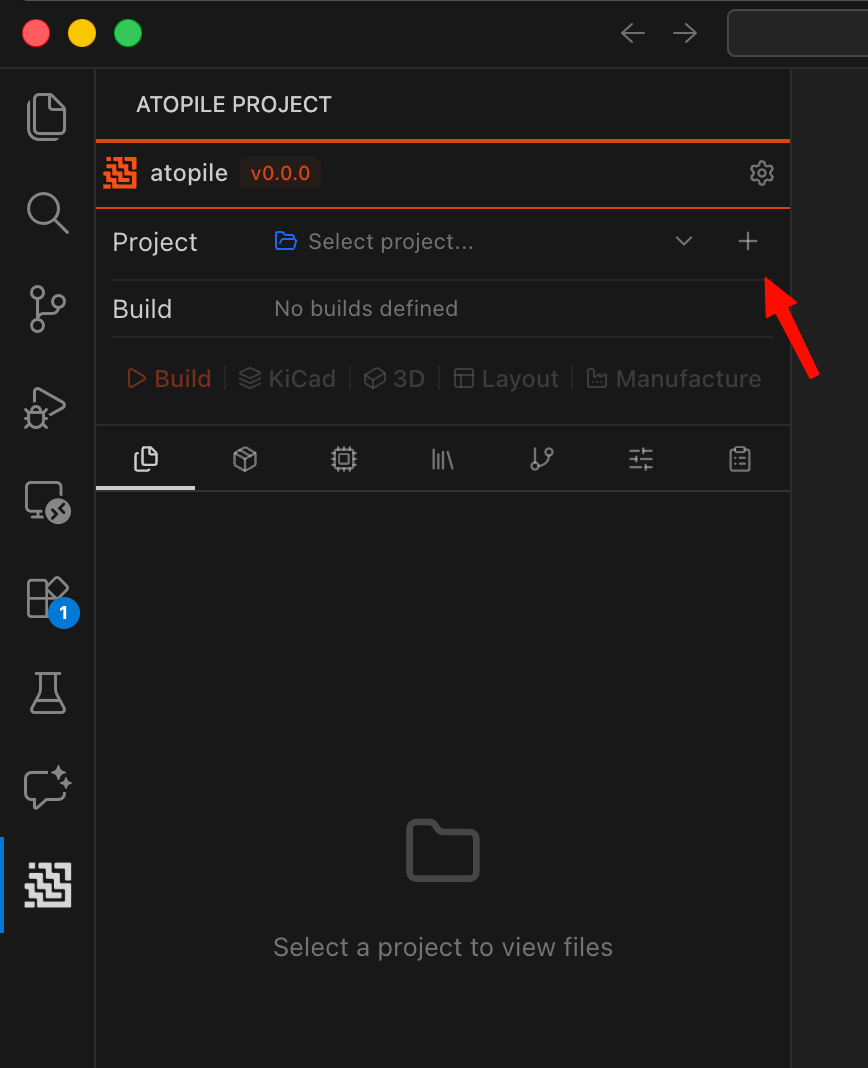
Click the `+` button next to the project selector to create a new project.
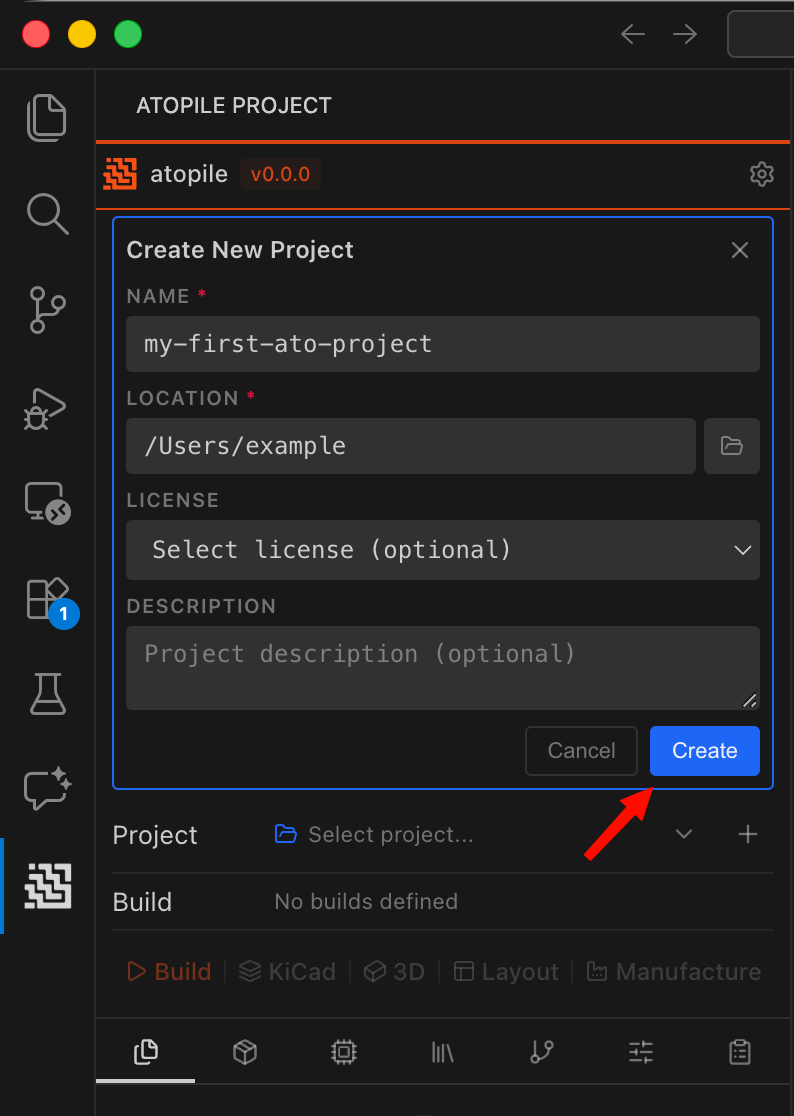
 Fill in the prompts, then click **Create**.
 Click on `main.ato` in the file explorer to open it in the editor.
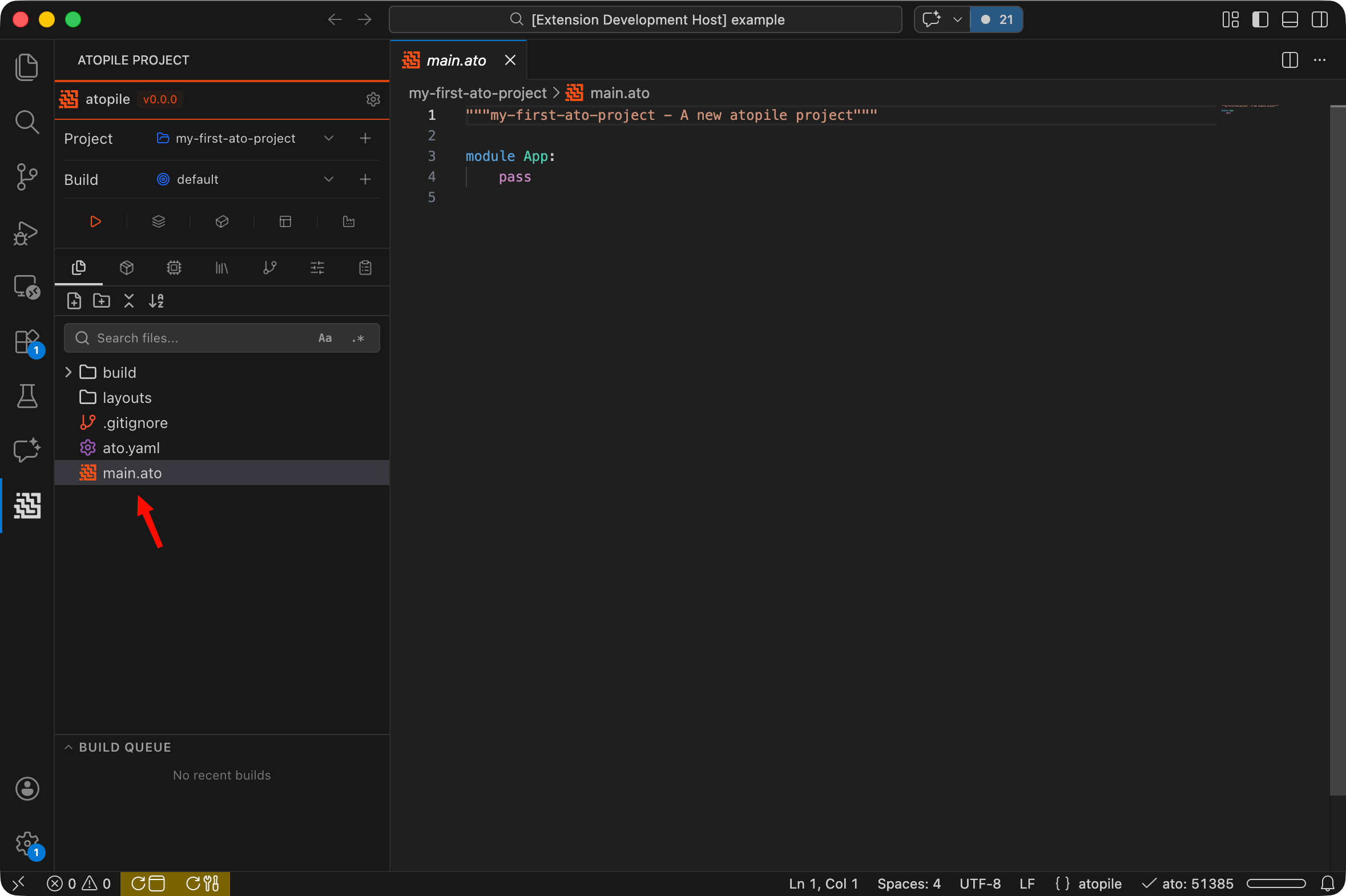 `.ato` files are where design intent is captured. See [`ato` Language](/atopile-0.14.x/essentials/1-the-ato-language) for more details.
Other project files contain metadata and export artifacts. They are auto-generated when creating a new project. See [Project Structure](/atopile-0.14.x/essentials/5-project-structure) for more details.
## Build it
```python theme={null}
import Resistor
module App:
r1 = new Resistor # Create a new resistor
r1.resistance = 50 kohm +/- 10% # Set the resistor value
```
Update `main.ato` with this code, then click the **Build** button in the extension.
`.ato` files are where design intent is captured. See [`ato` Language](/atopile-0.14.x/essentials/1-the-ato-language) for more details.
Other project files contain metadata and export artifacts. They are auto-generated when creating a new project. See [Project Structure](/atopile-0.14.x/essentials/5-project-structure) for more details.
## Build it
```python theme={null}
import Resistor
module App:
r1 = new Resistor # Create a new resistor
r1.resistance = 50 kohm +/- 10% # Set the resistor value
```
Update `main.ato` with this code, then click the **Build** button in the extension.
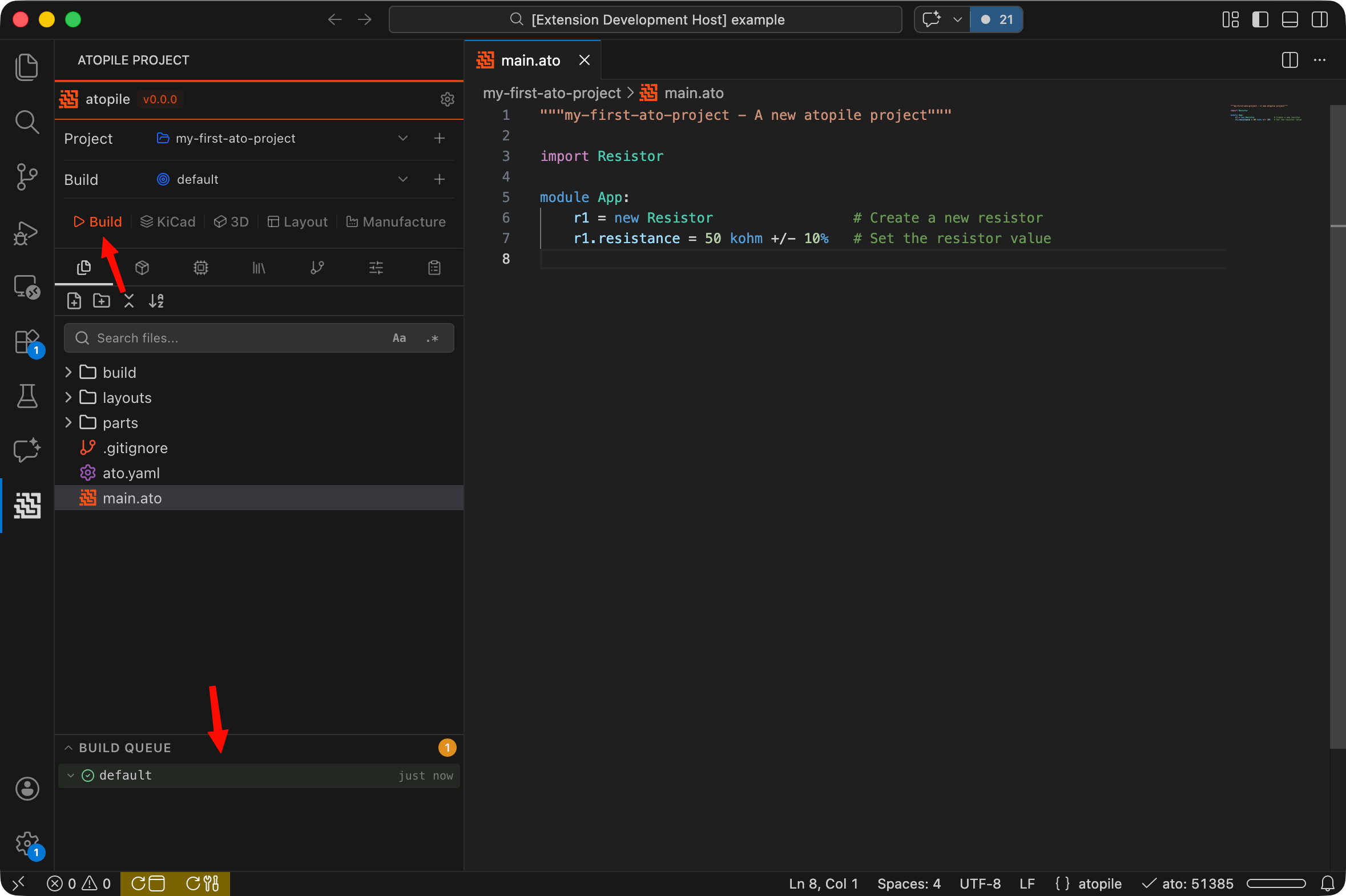 Build progress will appear in the **Build Queue** at the bottom of the sidebar.
A green checkmark means success! 🎉
## Views
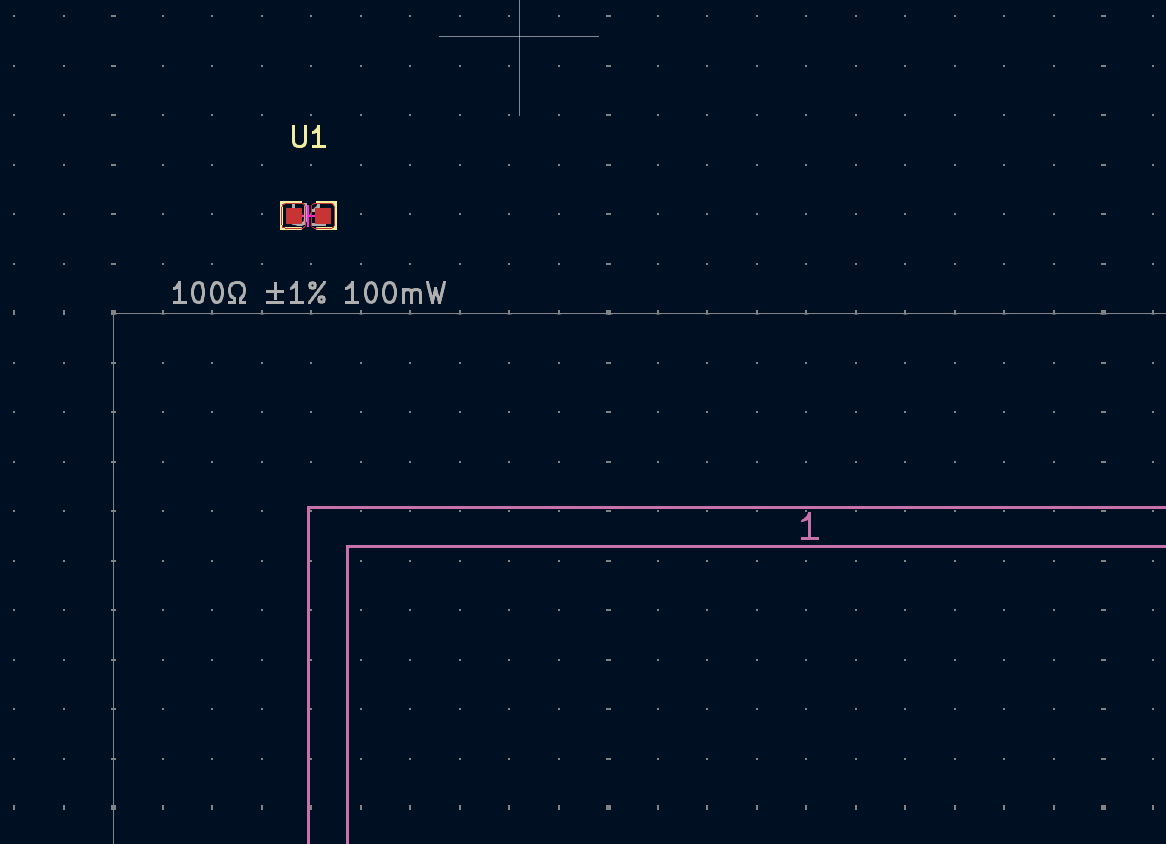
After a successful build, you can visualize your design with the buttons next to the build button:
* **2D Layout:** opens a built-in viewer showing component placement and board outline.
* **3D Model:** opens a built-in 3D preview of your assembled board.
* **KiCad:** opens the layout in KiCad for routing and detailed editing. Requires [KiCad](https://www.kicad.org/) to be installed.
Build progress will appear in the **Build Queue** at the bottom of the sidebar.
A green checkmark means success! 🎉
## Views
After a successful build, you can visualize your design with the buttons next to the build button:
* **2D Layout:** opens a built-in viewer showing component placement and board outline.
* **3D Model:** opens a built-in 3D preview of your assembled board.
* **KiCad:** opens the layout in KiCad for routing and detailed editing. Requires [KiCad](https://www.kicad.org/) to be installed.