> ## Documentation Index
> Fetch the complete documentation index at: https://atopile-feature-versioned-docs.mintlify.site/llms.txt
> Use this file to discover all available pages before exploring further.
# 5. Examples
> Try out a built-in example project
## Trying out an example
Press `Ctrl+Shift+P` and search for `atopile: Open Example`.
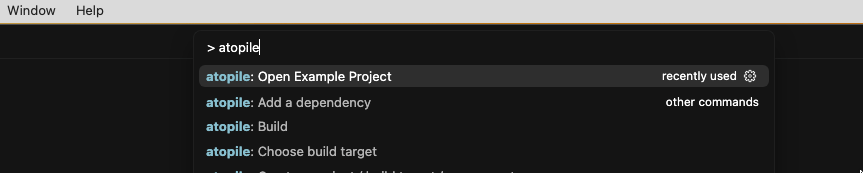 Choose any example you like from the selection.
After confirming wait for the `ato menu bar` to appear:
Choose any example you like from the selection.
After confirming wait for the `ato menu bar` to appear:
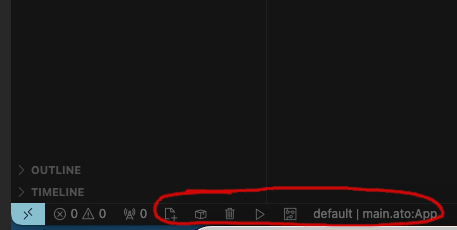 Press on the play button to compile the example.
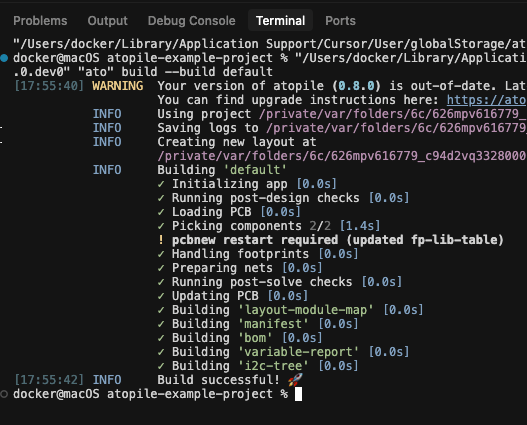
You will be greeted by the logs in the terminal:
Press on the play button to compile the example.
You will be greeted by the logs in the terminal:
 If you have KiCAD installed, you can now press on the PCB icon in the ato menu bar to open the layout file.
## What's next?
In the [Essentials tutorial](../essentials/1-the-ato-language) we continue with a real circuit, installing and using packages, maths and version control.
If you have KiCAD installed, you can now press on the PCB icon in the ato menu bar to open the layout file.
## What's next?
In the [Essentials tutorial](../essentials/1-the-ato-language) we continue with a real circuit, installing and using packages, maths and version control.